User manual · Editor v14.99
Make the exact paper you need.
A friendly guide to the Print A Page editor: picking paper, building layouts, layers, exporting at true size, and the shortcuts that make it fast.
printapage.net · app.printapage.net
by Pixel King Designs
Print A Page · User manualContents
InsideWhat's in this guide
Read it front to back in ten minutes, or jump to the part you need. Everything here matches the editor as it is today.
01Your first pagePick a paper, print it. Two minutes.
02A tour of the editorWhat every panel is for
03Choosing paper79 styles, search, favorites
04Layouts and sectionsSplit, blend, merge and swap
05LayersStack, hide, lock and rename
06Make the paper yoursLines, margins, labels and color
07Logos, watermarks, backgroundsBrand it in seconds
08Pages and batchesMultipage documents, up to 500 pages
09Print and exportTrue size, every format
10Save your workDrafts, design files and presets
11Make it comfortableThemes, toolbar, full screen
12Shortcuts and answersKeys, fixes and Free vs Pro
Good to knowAnything marked PRO is part of Print A Page Pro. On the Free plan you can still open and try it; Pro is only needed to export it.
printapage.net2
Print A Page · User manualYour first page
01Your first page in two minutes
No account, no download. Open app.printapage.net and you are already looking at a blank sheet of US Letter.
- Pick a paper. In the Paper Types library on the left, click a style, say College ruled. The whole page takes it instantly.
- Set the size. Under Page Setup on the right, choose a paper size (Letter, A4 and 15 more) and Portrait or Landscape.
- Tune it. Open Layout & Scaling and Margins, Header & Extras to change spacing, line style, margins, or add Name and Date lines.
- Export. Click Export (top right), keep PDF and Vector, then Download PDF.
- Print at 100%. In your printer dialog choose Actual size (not "Fit to page"), and your lines come out at true size.
Mixing papers is the fun part
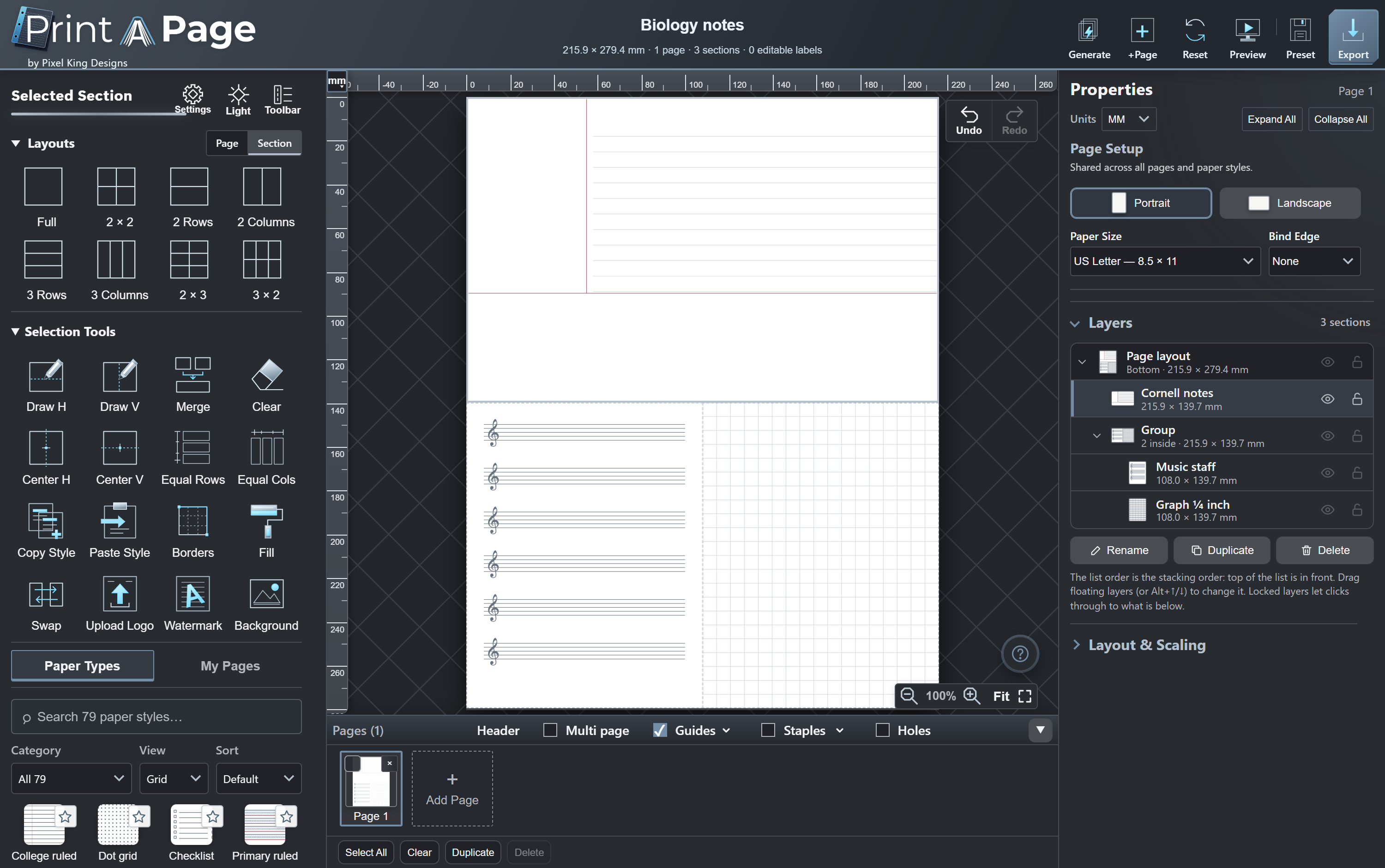
Click 2 Rows under Layouts, click the top half and pick Cornell notes, then click the bottom half and pick Graph ¼ inch. One page, two papers. Every part of a split page is a section, and each section can hold its own paper.
Stuck?Click the round ? above the zoom controls (or press ?) for animated tips, shortcuts and quick answers, with a Show me button that points at the real control.
TipYour work saves itself in this browser as you go. If you close the tab, the editor offers to Recover your last design next time.
The editor runs entirely in your browser. Your designs are not uploaded anywhere unless you export and share them yourself.
printapage.net3
Print A Page · User manualA tour of the editor
02A tour of the editor
Three columns: tools and paper on the left, your page in the middle, settings on the right.
123
456
78910
1Paper library. All 79 styles, with search, categories and favorites. My Pages holds your saved presets.
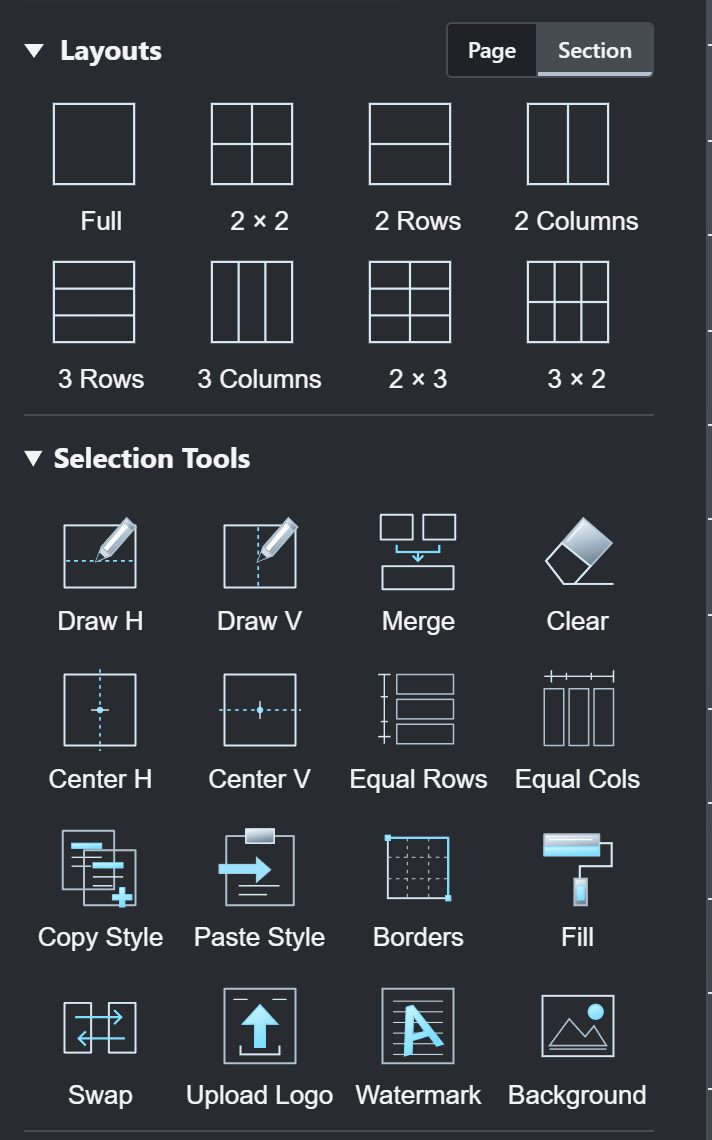
2Layouts. Split the page, or just the selected section, into rows, columns and grids.
3Selection Tools. Draw dividers, merge, center, equalize, copy styles, borders, logos and more.
4Your page. Click a section to select it. Shift-click adds more; Alt-click picks the one underneath.
5Properties. Page size and orientation, then every setting for the selected paper.
6Layers. Every section in one list. Top of the list is in front.
7Pages. Add, select, duplicate and delete pages. Toggles for header, guides, staples and holes.
8Commands. Generate, +Page, Reset, Preview, Preset and Export.
9Settings, Light and Toolbar. App settings and themes, light/dark, and the compact icon toolbar.
10Zoom and Help. Zoom, Fit the page or go full screen. The round ? above opens Help.
printapage.net4
Print A Page · User manualChoosing paper
03Choosing paper
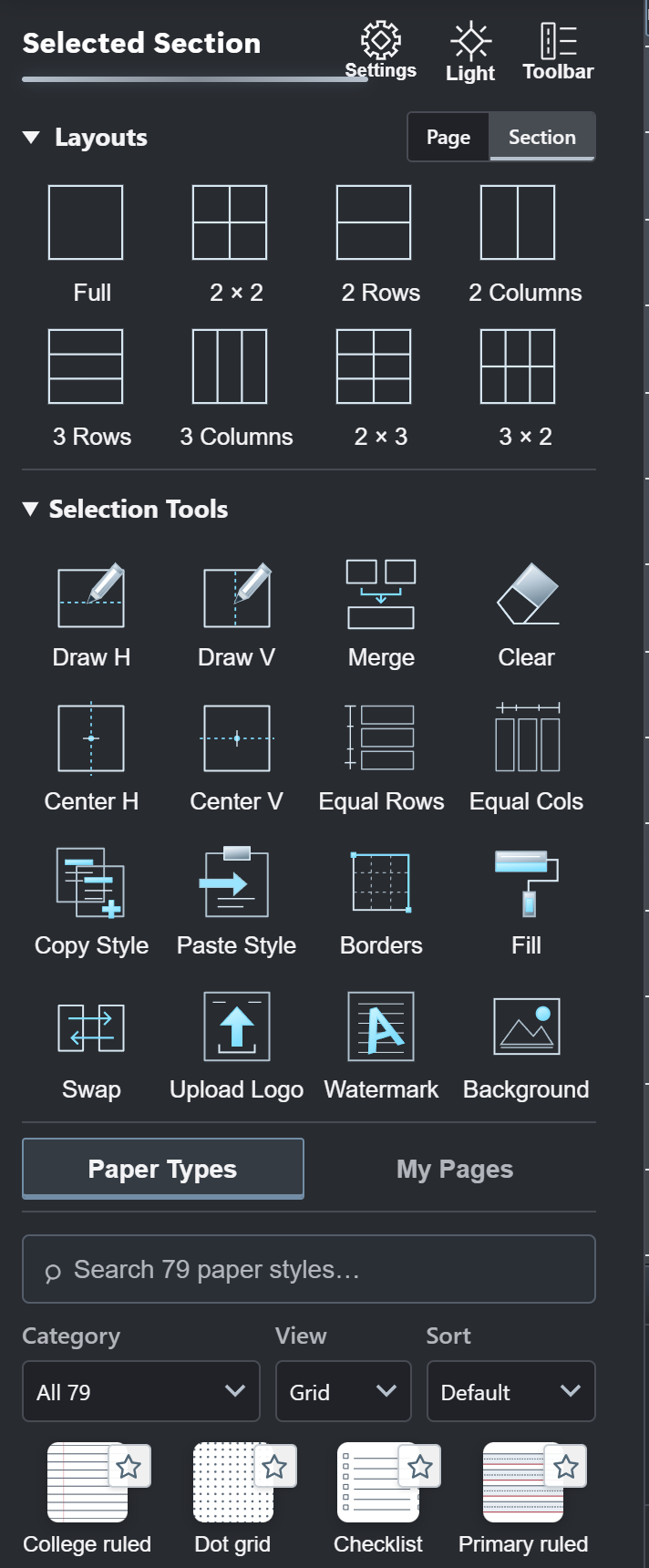
79 styles in eleven families: writing, math, planning, study, education, music, engineering, office, creative, home & kitchen and shooting range.
- Search by name: type staff, dot or recipe.
- Category narrows the list; View switches grid or list; Sort reorders it.
- Star a paper to keep your favorites close.
- Click a paper to apply it to the selected section, or to the whole page when nothing is split.
Writing
College, wide, narrow, legal, primary, handwriting, calligraphy
Math & science
Graph ¼ in, 5 mm, 10 mm, dot grid, isometric, polar, log
Plan & study
Weekly, monthly, daily, habits, Cornell, KWL, Frayer
Music
Staff, grand staff, guitar TAB, chords, SATB, percussion
Office & home
Ledger, budget, register, recipe cards, meal plans, inventory
Creative & more
Storyboard, comic, perspective, knitting, targets
Tip24 papers are free, including the everyday ones: college and wide ruled, graph, dot grid, Cornell notes and more. The rest carry a PRO mark; you can still open and try them.
printapage.net5
Print A Page · User manualLayouts and sections
04Layouts and sections
Split a page into sections and give each its own paper. The Page / Section switch decides whether a layout replaces the whole page or splits just the section you selected.
| Tool | What it does |
|---|
| Full, 2 × 2, Rows, Columns… | Ready-made layouts for the page or the selected section |
| Draw H / Draw V | Draw your own divider inside the selected section |
| Merge | Join a section with a full-edge neighbor |
| Clear | Set the selected section back to blank |
| Center H / V | Make an opaque copy centered across the page; it floats above the layout |
| Equal Rows / Cols | Even out uneven rows or columns |
| Copy / Paste Style | Copy one section's paper and settings onto another |
| Swap | Swap the papers of two selected sections |
| Borders / Fill PRO | Frame or tint selected sections |
TipDrag the line between two sections to resize them. To select two sections at once (for Swap, Borders or Fill), Shift-click the second one.
printapage.net6
Print A Page · User manualLayers
05Layers
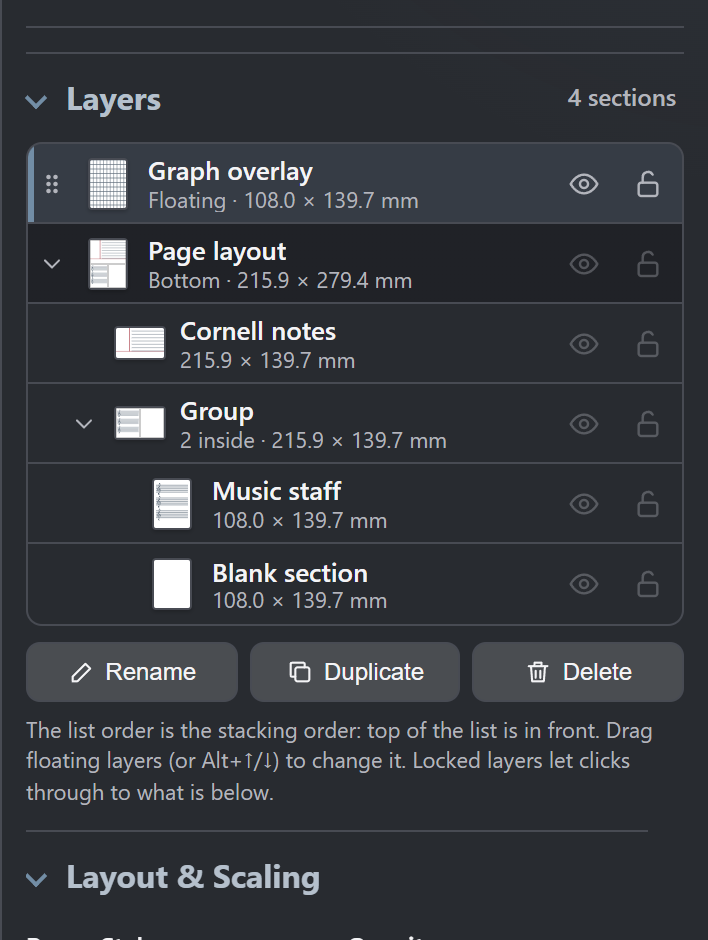
A renamed floating copy on top, the page layout and its sections below.
The Layers panel on the right lists every section on the page. The list order is the stacking order: the top of the list is in front.
- Click a layer to select it, even one hidden under another section. ↑ ↓ move through the list.
- Hover a layer to see it outlined on the page.
- Drag the ⠿ handle of a floating layer, or press Alt + ↑/↓, to change what sits on top.
- Eye hides a layer. Hidden layers are left out of the page and every export; a note reminds you, with Show all.
- Lock stops a layer being moved, divided or deleted, and lets clicks pass through to whatever is underneath.
- Rename with a double-click, F2 or the Rename button. Duplicate and Delete sit beside it.
TipMade a floating copy with Center H and now can't click the sections beneath it? Lock the copy. Clicks go straight through to the sections below.
The page layout itself always stays the bottom layer, so floating copies sit above it.
printapage.net7
Print A Page · User manualMake the paper yours
06Make the paper yours
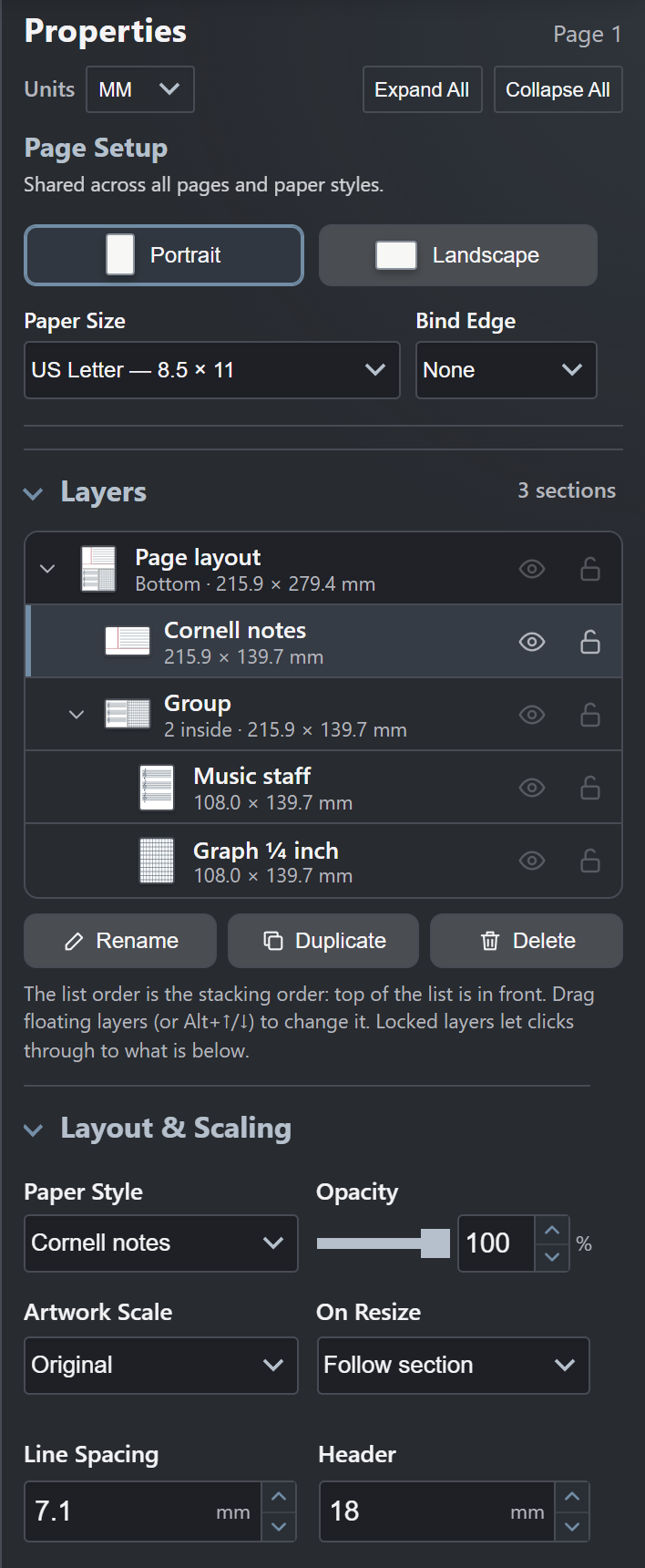
Select a section and the Properties panel shows every option that paper has. Expand All opens them all at once.
Layout & Scaling
The paper style, opacity, spacing and scale. Units at the top switches between mm, inches and cm, and every measurement follows.
Lines
Solid, dashed and dotted lines on every plan; dash-dot, wavy, zigzag and patterned lines PRO. Any color and weight.
Margins, Header & Extras
A left margin line (or extra margins PRO), header space, and Name and Date labels in your own font. You can also drag margin lines right on the page.
Paper-specific options
Cornell notes gets cue and summary sizes; recipe cards get servings and allergens; seating charts get desks and rows. If a paper has it, it's here.
TipSet one section exactly how you like it, then use Copy Style and Paste Style to repeat it elsewhere.
printapage.net8
Print A Page · User manualLogos, watermarks, backgrounds
07Logos, watermarks and backgrounds
Make worksheets, forms and notebooks look like yours.
Upload Logo PRO
Add a PNG or JPEG to the page, then drag it into place. With a logo selected, the arrow keys nudge it (hold Shift for bigger steps) and Delete removes it.
Watermark PRO
Stamp your own text or an image once, or repeat it across the whole sheet at any angle, spacing and opacity.
Background PRO
Put a photo behind any section. Choose fit, cover or stretch, and how faint it should be so the lines stay readable.
Borders and fill PRO
Give a section a colored frame or a soft tint, perfect for highlighting a summary box or a title band.
TipKeep watermarks around 10–20% opacity. They read clearly on screen and stay out of the way of handwriting on paper.
Binding, staples and holes
Set a Bind Edge in Page Setup and the editor keeps a clear gutter for it. The Holes and Staples toggles under the page show 2-, 3- and 4-hole, disc, comb, coil and wire guides and seven staple modes, so nothing important lands where you punch. The bind gutter can be dragged right on the page.
printapage.net9
Print A Page · User manualPages and batches
08Pages and batches
One document can hold many pages, each with its own paper and layout.
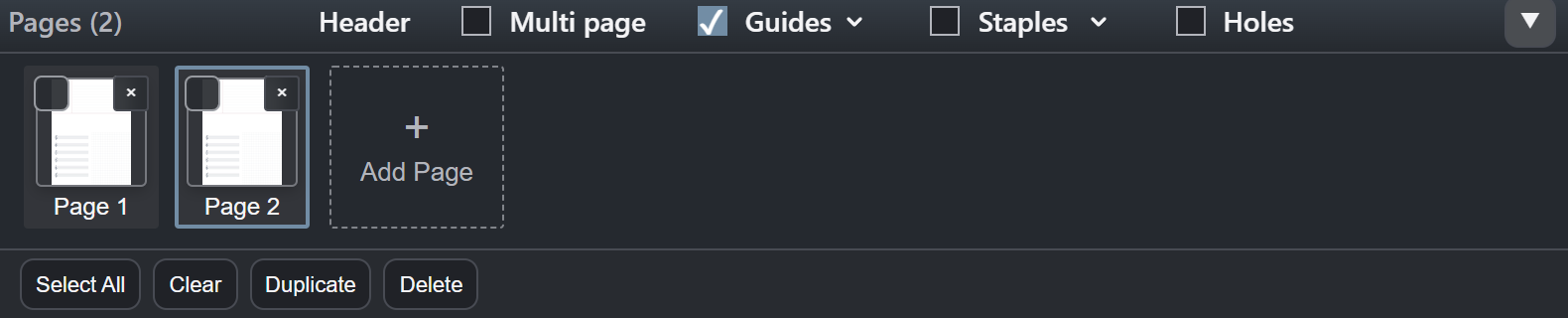
- +Page or Add Page adds a page; Ctrl + D duplicates the current one.
- Select several page thumbnails, then Duplicate, Clear or Delete them in one click.
- Multi page shows your pages side by side; Preview flips through them full size (arrow keys, Esc to exit).
Generate up to 500 pages PRO
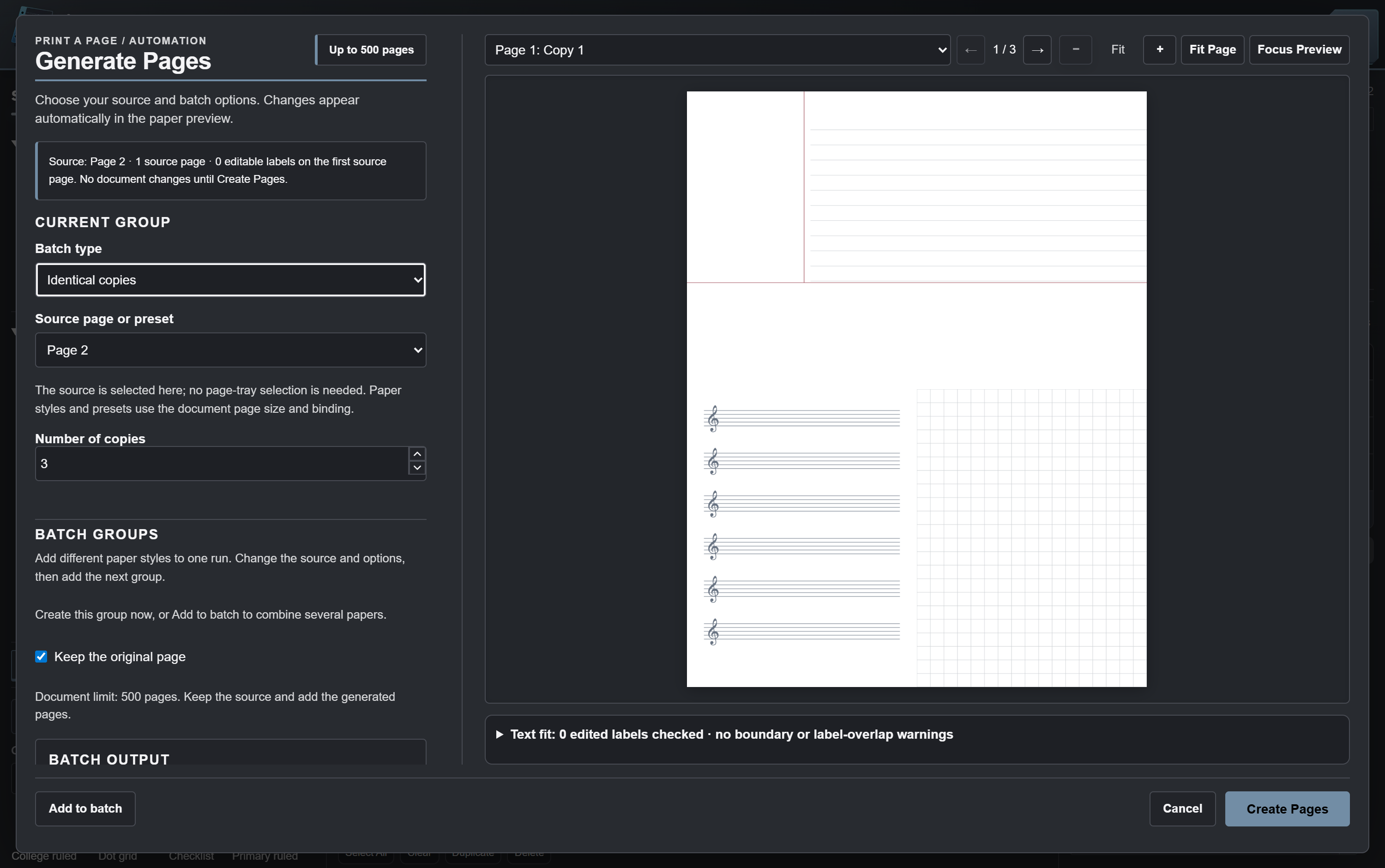
Generate builds many pages from one design:
- identical copies
- a page per name or date
- numbered tickets
- a pasted spreadsheet, one page per row
The preview updates as you change options. Add to batch combines several papers in one run, then Create Pages.
TipMaking name tags for a class? Put a label on the page, paste the roster into Generate, and get one personalized page per student.
printapage.net10
Print A Page · User manualPrint and export
09Print and export
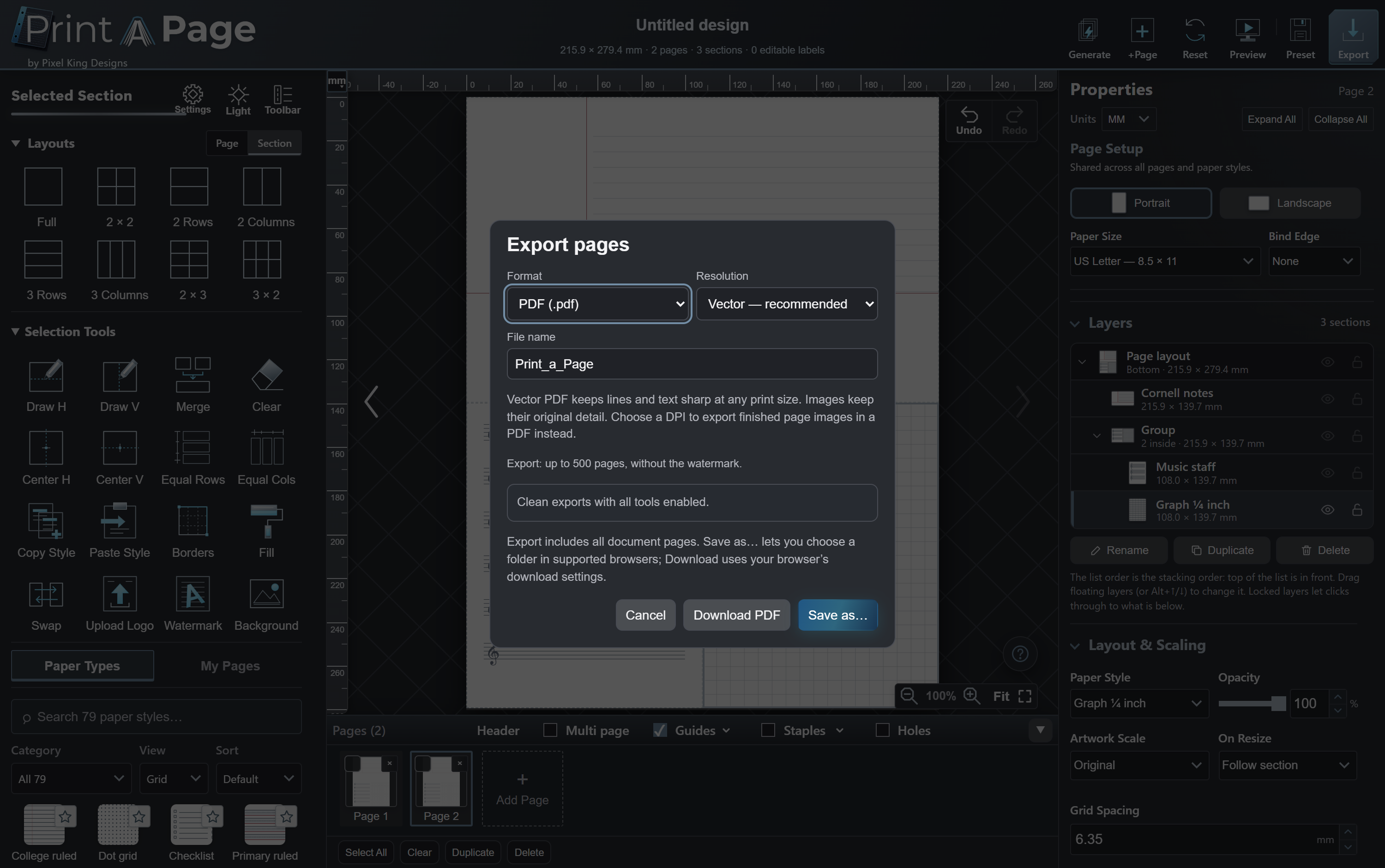
Click Export, pick a format and resolution, then Download or Save as… to choose a folder.
- PDF: vector is best for printing; lines stay sharp at any size.
- Images: 96 to 1200 dpi.
- Word and printable HTML PRO for documents you'll edit later.
| Format | Best for | Plan |
|---|
| PDF | Printing; sharing a ready-to-print file | Free (up to 5 pages, small footer) · Pro |
| PNG, JPEG, WebP | Images for slides, apps and websites | Pro |
| TIFF, BMP | Print shops and older software | Pro |
| SVG | Editing the lines in a design program | Pro |
| Word, HTML | Adding typed text; printing from a browser | Pro |
Print at true sizeChoose Actual size or 100% in the print dialog, never "Fit to page". Printers vary, so print one test sheet before a big batch. (Safari can't create WebP files; every other format works there.)
printapage.net11
Print A Page · User manualSave · Comfort
10Save your work
Automatic drafts
The editor keeps your latest design in this browser and offers Recover when you come back.
Design files
Press Ctrl + S to download your design as a file you can open later, on any computer.
Presets
Preset saves the current page to My Pages in the library, ready to reuse with one click.
Undo everything
Ctrl + Z undoes; Ctrl + Y or Ctrl + Shift + Z redoes.
Before you clear your browserDrafts live in the browser. Download a design file (Ctrl + S) for anything you want to keep long term.
11Make it comfortable
- Light switches light and dark mode.
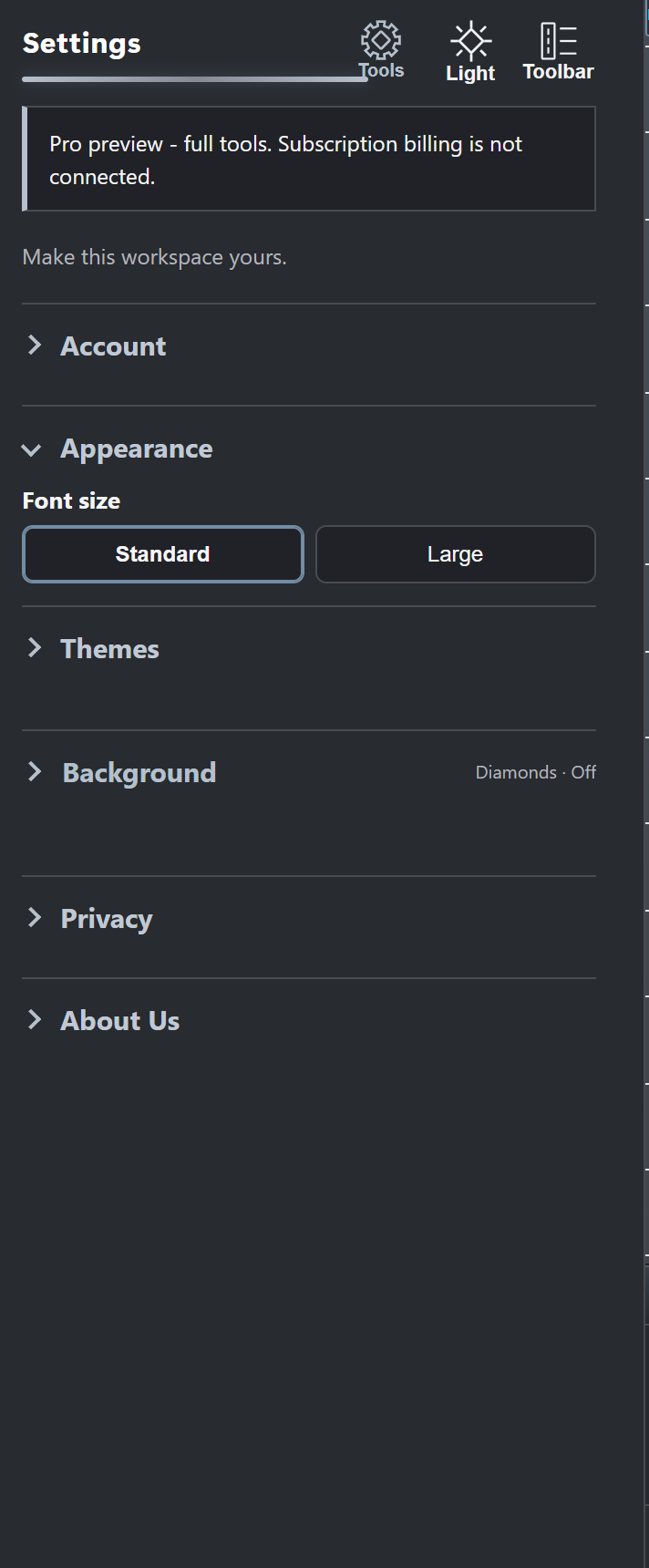
- Settings holds appearance presets (Teal Desk, Lab Notes, Lavender, Forest, Blueprint, PK Royal) and 18 animated workspace effects.
- Toolbar docks every layout and selection tool in a slim icon column beside the page.
- Full screen (the corner icon beside Fit) gives the editor the whole screen; untick Header under the page for even more room.
printapage.net12
Print A Page · User manualShortcuts and answers
12Shortcuts and answers
| Keys | Action |
|---|
| Ctrl+Z | Undo |
| Ctrl+Y | Redo (also Ctrl+Shift+Z) |
| Ctrl+S | Download the design file |
| Ctrl+D | Duplicate the page |
| Shift-click | Select more sections |
| Alt-click | Select the section underneath |
| ↑ ↓ | Move through layers |
| Alt+↑/↓ | Move a floating layer up or down |
| F2 | Rename the selected layer |
| Arrows | Nudge a selected logo (Shift for more) |
| Esc | Close a dialog, leave Preview |
| ? / F1 | Open Help & tips |
On a Mac, use ⌘ for Ctrl.
My print comes out too small or too big
Choose Actual size / 100% in the print dialog and check the paper size matches Page Setup.
The edges are cut off
Most printers can't print to the very edge. Add a little margin, or use Borders to see your safe area.
I can't click a section
Something is on top of it. Pick it in Layers, Alt-click it, or lock the layer above.
Something is missing from my PDF
Check Layers for a hidden layer (eye icon). Use Show all.
I lost my design
Reopen the editor in the same browser and choose Recover. Next time, save a design file with Ctrl+S.
printapage.net13
Print A Page · User manualFree and Pro
PlansFree and Pro, side by side
Free
- 24 paper styles and the core editing tools
- Split a page into two sections
- Margins and labels
- Every paper size, true scale, binding guides
- PDF export up to five pages, with a small footer
- Personal and classroom use
Pro
- All 79 paper styles and every tool
- Clean exports with no footer
- All 9 formats, vector or up to 1200 dpi
- Batch runs of up to 500 pages
- Logos, artwork, section borders and fills
- Personal and classroom use
Pro Lifetime is Pro with one payment. Business adds a commercial license to sell pages and make them for clients. Current prices are on printapage.net.
Unlock ProAfter checkout, sign in from the editor with the email you used and the one-time code we send you. No passwords.
Questions? Ideas for a new paper?
Write to [email protected]. A real person reads every message.
© Pixel King Designs · printapage.net14